Tip. If the long URL is awkward to copy — the dashboard has a short code. You can type it into the app instead of the full link.

1 Download the app

  1. Open frkn.org/dopamine and pick your platform (Android APK, iOS TestFlight, Windows, macOS, Linux).
  2. Install Dopamine like any other app.
  3. On Android APK installs, allow unknown sources if the system asks.
On iOS the app is on TestFlight for now — Apple's official way to share apps for testing. Apple is very strict about VPN apps: we're in review, and Dopamine will be on the App Store and Google Play soon. Until then, install via TestFlight on iOS or the APK on Android. On Windows 11, if the installer doesn't have a trusted certificate yet (that goes away once we've saved up and bought one from Microsoft), SmartScreen says the publisher is unknown. That's expected: More info, then Run anyway.
2 Get your link from the dashboard

  1. Open your dashboard from the email or bot link.
  2. The first visit saves your id in the browser's localStorage. Next time you don't have to put it in the address bar — the dashboard opens on its own.
  3. In “Your connection link for the Dopamine app”, tap the link or Copy.
  4. You can just tap the link if Dopamine is already installed — it should open the app.

3 Add the subscription in Dopamine

  1. Open Dopamine.
  2. Paste the dashboard link (or the short code if you couldn't copy the URL).
  3. Wait for the subscription to sync — servers will appear.

4 Connect

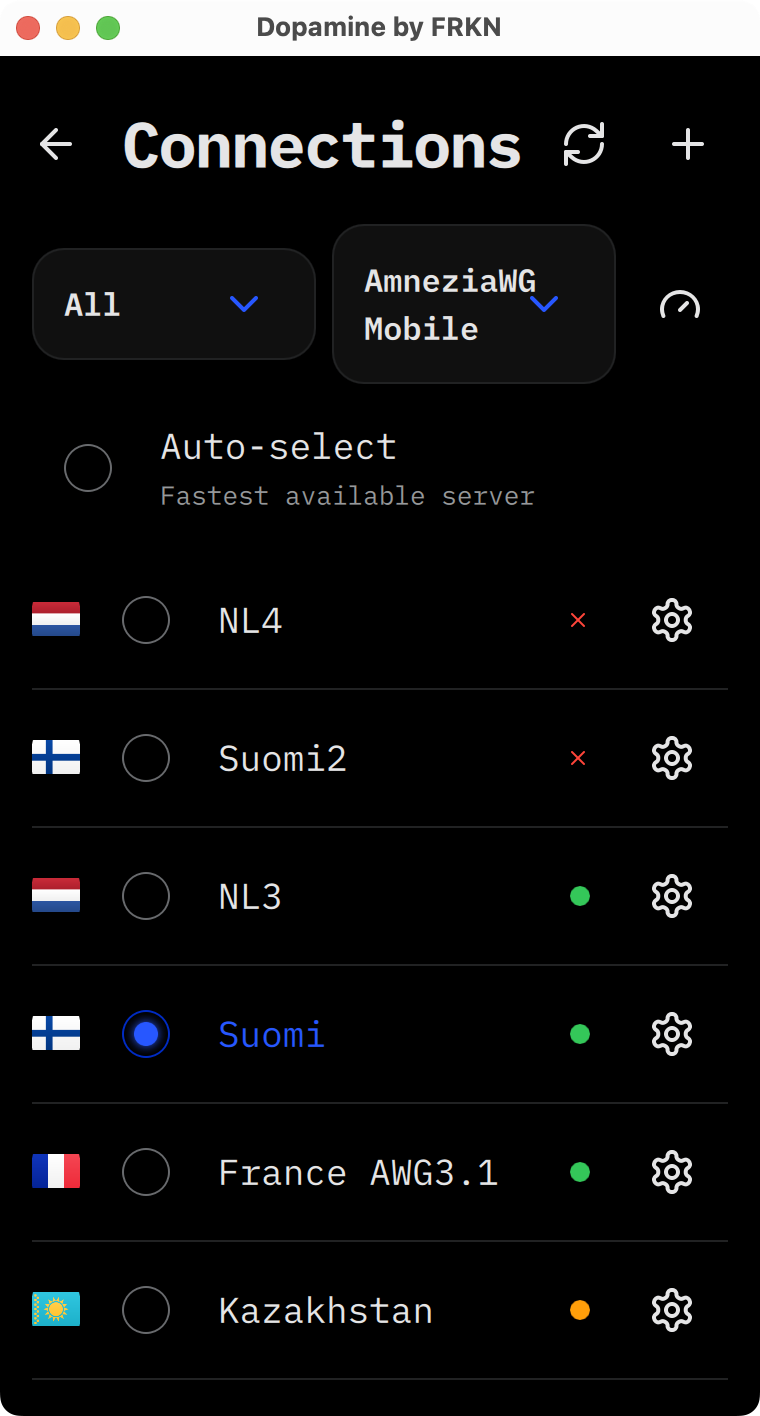
  1. Open the server list from the bottom card, or Connections. Auto-select picks the fastest server that answers.
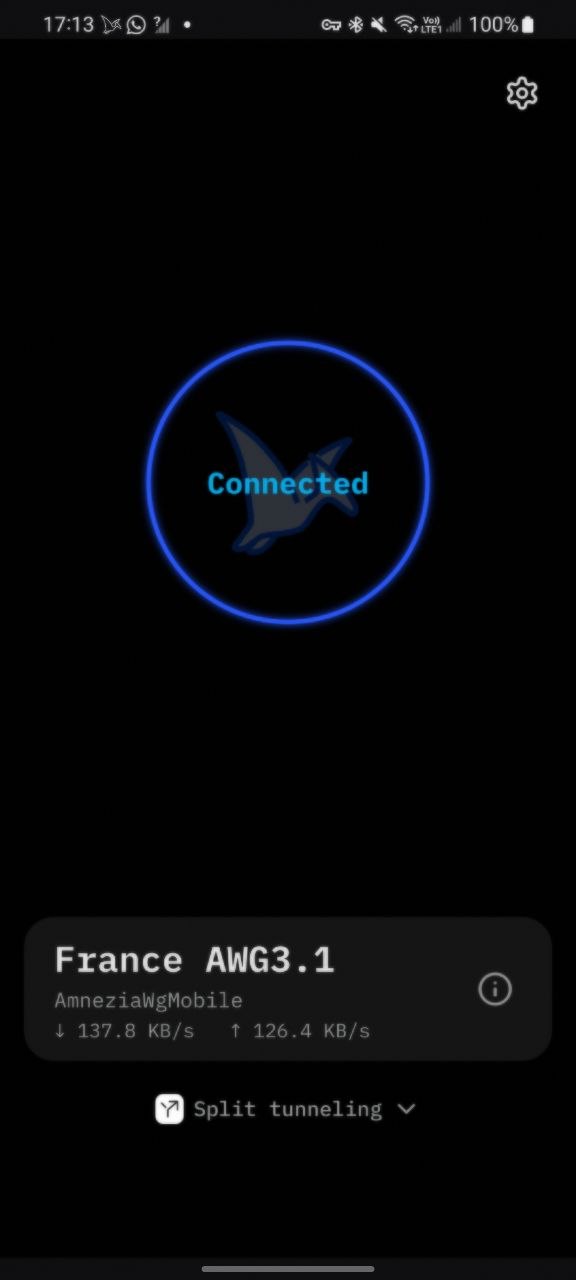
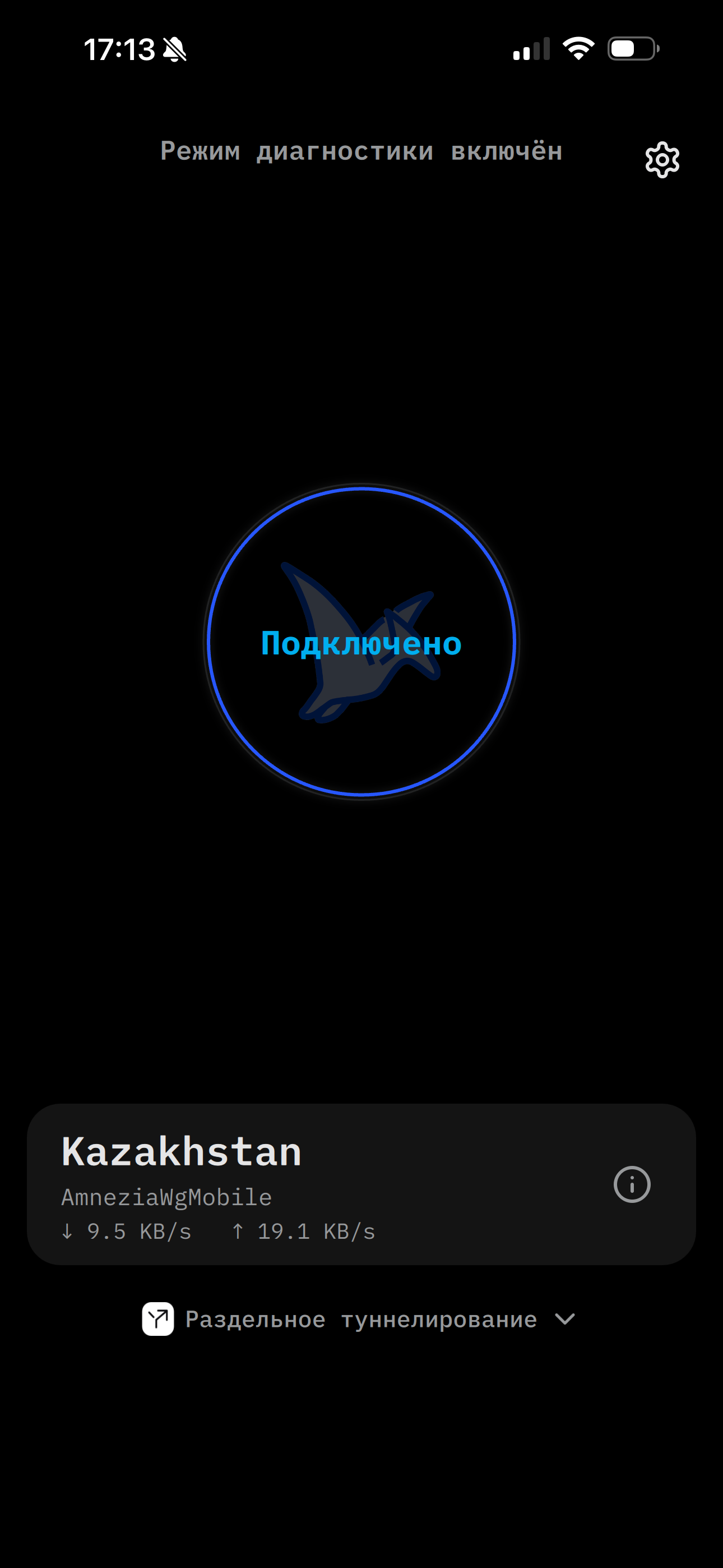
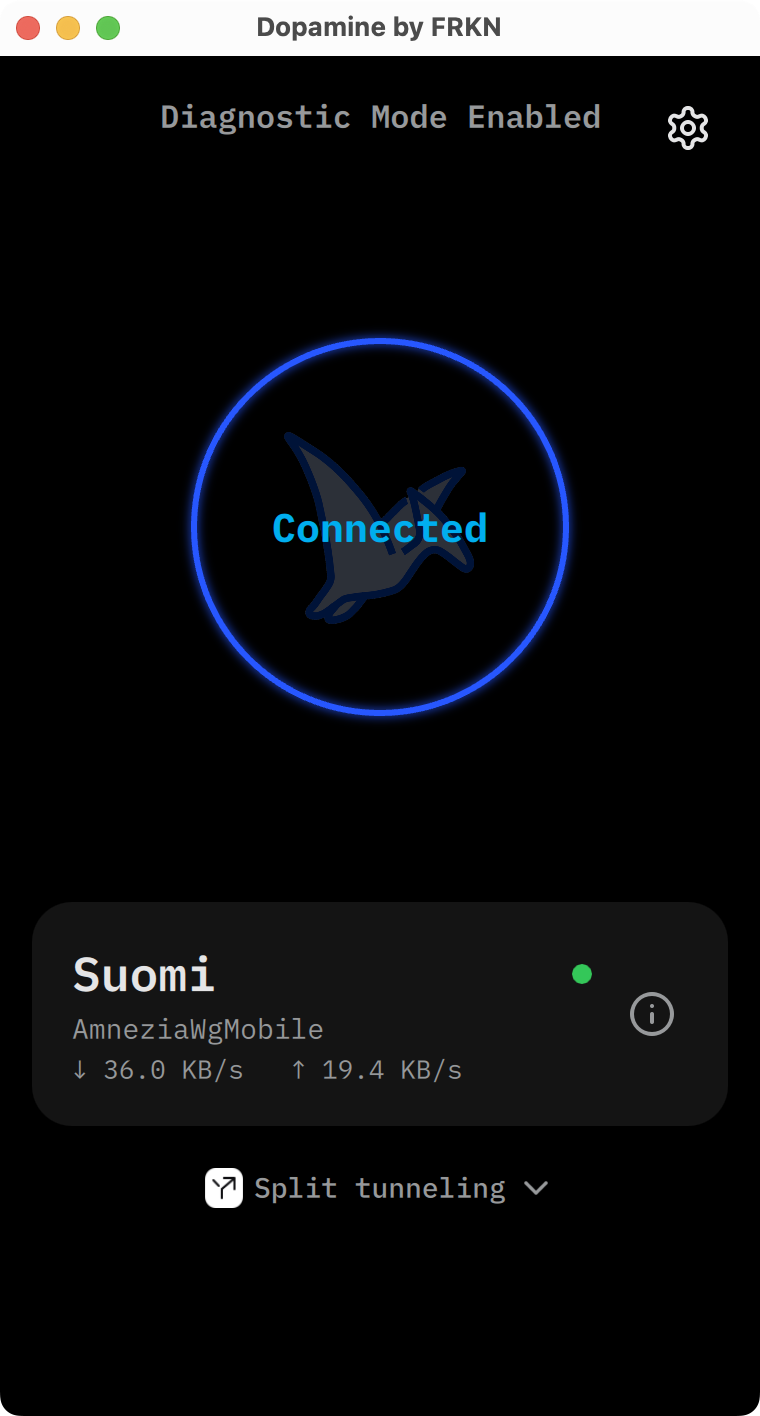
  2. Tap the big circle in the center — the pterodactyl takes off and the ring lights up.
  3. Allow the system VPN profile if iOS or Android asks for permission.
  4. Done: the card shows server, protocol and ↑↓ speeds.

You can pick a protocol in the server list.

  • For LTE and mobile networks — AmneziaWgMobile. Tuned for mobile: it holds the connection and link quality better. On older apps and routers Mobile may not work.
  • For Wi‑Fi and routers — AmneziaWG. Routers and older clients understand it.
  • If nothing connects and allowlists are on, pick Vless and a connection whose name contains BelySlon.

The ↑↓ numbers on the card are not your maximum internet “speed”. They show how busy the connection is right now. Start a large download through the VPN and the numbers go up. That's how the internet works.

Each server has a colored dot. Millisecond numbers are off by default. Turn them on in the gear menu → Application → Diagnostics → “Show server ping values”.

  • under 120 ms — good
  • 120 to 300 ms — okay
  • 300 ms and up — poor
  • × unavailable
Dopamine server list with colored ping dots
Server list. Dot is ping, cross means unavailable
Dopamine on Android — connected
Android — connected
Dopamine on iOS — connected
iOS — connected
Dopamine on desktop — connected
Windows and macOS — same window

5 Tunnel, settings, diagnostics

  1. Split tunneling is the button at the bottom of the home screen. On Android and Windows you can exclude apps from the tunnel so they use your regular connection. We recommend that for banking and anything the VPN breaks. On iPhone you can't exclude whole apps — there are ready presets for popular services instead. They sometimes work poorly. If you hit that, message support and we'll fix it.
  2. Settings — the gear at the top right. Inside: Connections (server list), Connection (LAN routing and KillSwitch on desktop, app exclusions on Android and Windows), Application (language, theme, diagnostics).
  3. Diagnostics — Application → Diagnostics. Logs are off by default and stay on the device. Turn on “Enable logs” if something breaks: the home screen then shows “Diagnostic Mode Enabled” at the top. Export the logs and send them to support. Ping numbers live in the same screen.
  4. Multiple devices — separate links so they don't clash. In the dashboard it's the plus button next to your connection link.
Not Dopamine — a router or another client? General setup guides and router guide.